Get the app experience
Add Deer Creek Local to your Home Screen 📱
Works just like an app — opens full-screen, one tap away. No App Store, no download.
On iPhone (Safari)
1
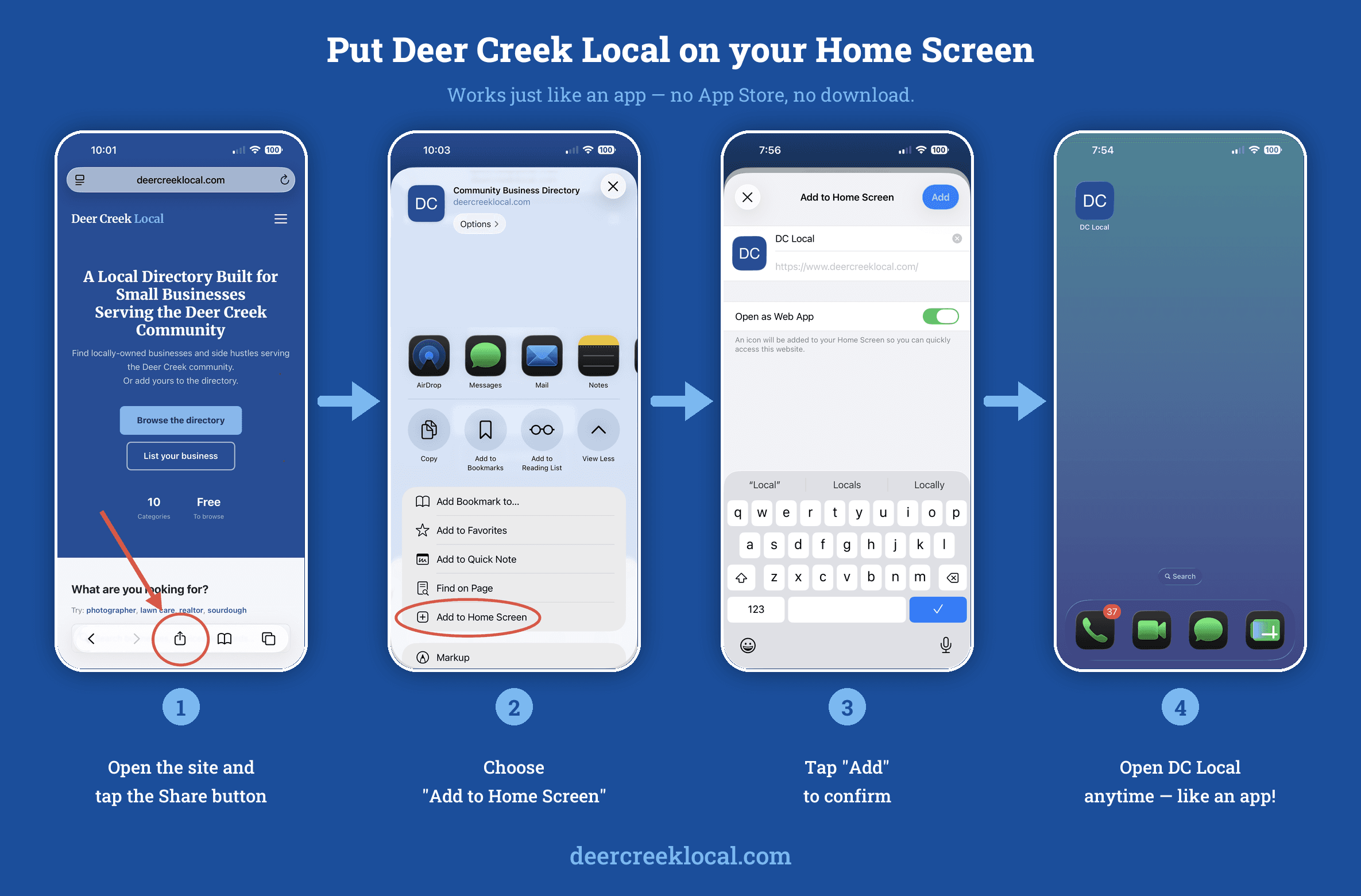
Open the site and tap Share
In Safari, tap the Share button (the square with an arrow) at the bottom of the screen.
2
Choose "Add to Home Screen"
Scroll down the share menu and tap Add to Home Screen, then tap Add.
3
Tap the DC icon anytime
Deer Creek Local now lives on your home screen and opens full-screen, just like an app.
On Android (Chrome)
1
Open the site in Chrome
Go to deercreeklocal.com in the Chrome browser.
2
Open the menu
Tap the three-dot menu (⋮) in the top-right corner.
3
Tap "Add to Home screen"
Choose Add to Home screen (or Install app), then confirm.
That's it!
Deer Creek Local is now a tap away whenever you need a local business, a deal, or new-resident info.
Browse the directory →